


What if you could run an entire business (marketing, customer service, design, bookkeeping, scheduling, all of it) by yourself? No employees. No freelancers. No burning out at midnight trying to do everything manually.
That's not a fantasy anymore. In 2026, AI tools have gotten so good that a single person can operate a business that used to require a team of five or more. And the wild part? Most of these tools are free to start.
This isn't a listicle. We're going to actually set up your entire AI business toolkit together, step by step. By the end of this guide, you'll have 7 tools running that handle the work you've been drowning in, and you'll wonder how you ever managed without them.
Let's build your AI team.
The Rise of the AI Solopreneur
Before we dive in, let's talk about why this matters right now.
In 2025, something shifted. There are now 41.8 million solopreneurs in the United States alone, contributing over $1.3 trillion to the economy. A staggering 84% of all U.S. businesses now operate without employees, up from 76% in 1997. And a 2025 McKinsey study found that AI-automated solo operators achieve 4.2x higher revenue per hour worked, a median of $127/hour compared to $31/hour for those doing everything manually.
Meanwhile, Shopify's CEO told employees that teams need to prove why they need more headcount before hiring, because AI should be the first option. On average, AI tools are saving small business owners 13 hours per week. That's almost two full workdays back.
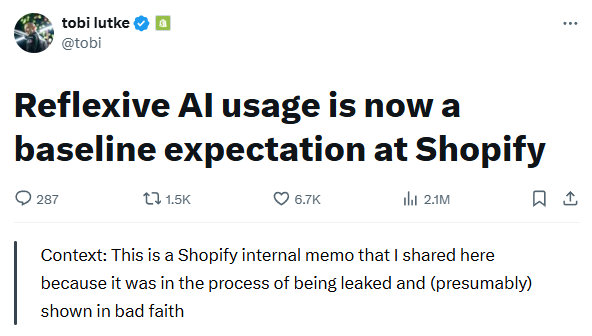 Screenshot: Shopify CEO Tobi Lutke's internal memo went viral in 2025. He told managers that before requesting new hires, they must demonstrate why AI can't do the job. This mindset is spreading to businesses of all sizes.
This isn't about replacing humans. It's about one human doing what used to take many. And the tools to make that happen are sitting right in front of you, most of them free.
Here's the toolkit we're setting up today:
| Tool | What It Replaces | Free? |
|---|---|---|
| ChatGPT | Content writer, strategist, researcher | Yes (free tier) |
| Canva AI | Graphic designer | Yes (free tier) |
| Notion AI | Project manager, note-taker | Yes (free tier) |
| Buffer | Social media manager | Yes (free for 3 channels) |
| Tidio | Customer service rep | Yes (free for 50 conversations/mo) |
| Wave | Bookkeeper, accountant | Yes (completely free) |
| Zapier | Operations coordinator | Yes (free for 100 tasks/mo) |
Total cost to start: $0. Let's go.
What You'll Need Before We Start
This is going to be simpler than you think.
| What You Need | Details |
|---|---|
| A computer | Windows, Mac, or Linux |
| An internet connection | All these tools run in your browser |
| About 3 hours | That's how long the full setup takes |
| An email address | You'll create accounts with it |
| Your business idea | Even a rough one works |
What You Do NOT Need
- You do not need any technical skills
- You do not need to know how to code
- You do not need a business license (yet)
- You do not need to pay for anything today
Ready? Let's set up your AI team, one tool at a time.
Tool 1: ChatGPT, Your AI Brain (Content, Strategy, Research)
This is the most important tool in your stack. Think of ChatGPT as a business partner who never sleeps, never takes a day off, and knows a little bit about everything. You'll use it for writing emails, creating content, brainstorming ideas, drafting proposals, and making decisions. If you're brand new to AI tools, our 30-day guide for non-tech business owners walks you through the fundamentals before diving into a full toolkit like this.
Set It Up
- Go to chat.openai.com (opens in a new tab)
- Click "Sign Up"
- Create an account with your Google account or email
- Choose the free plan (no credit card needed)
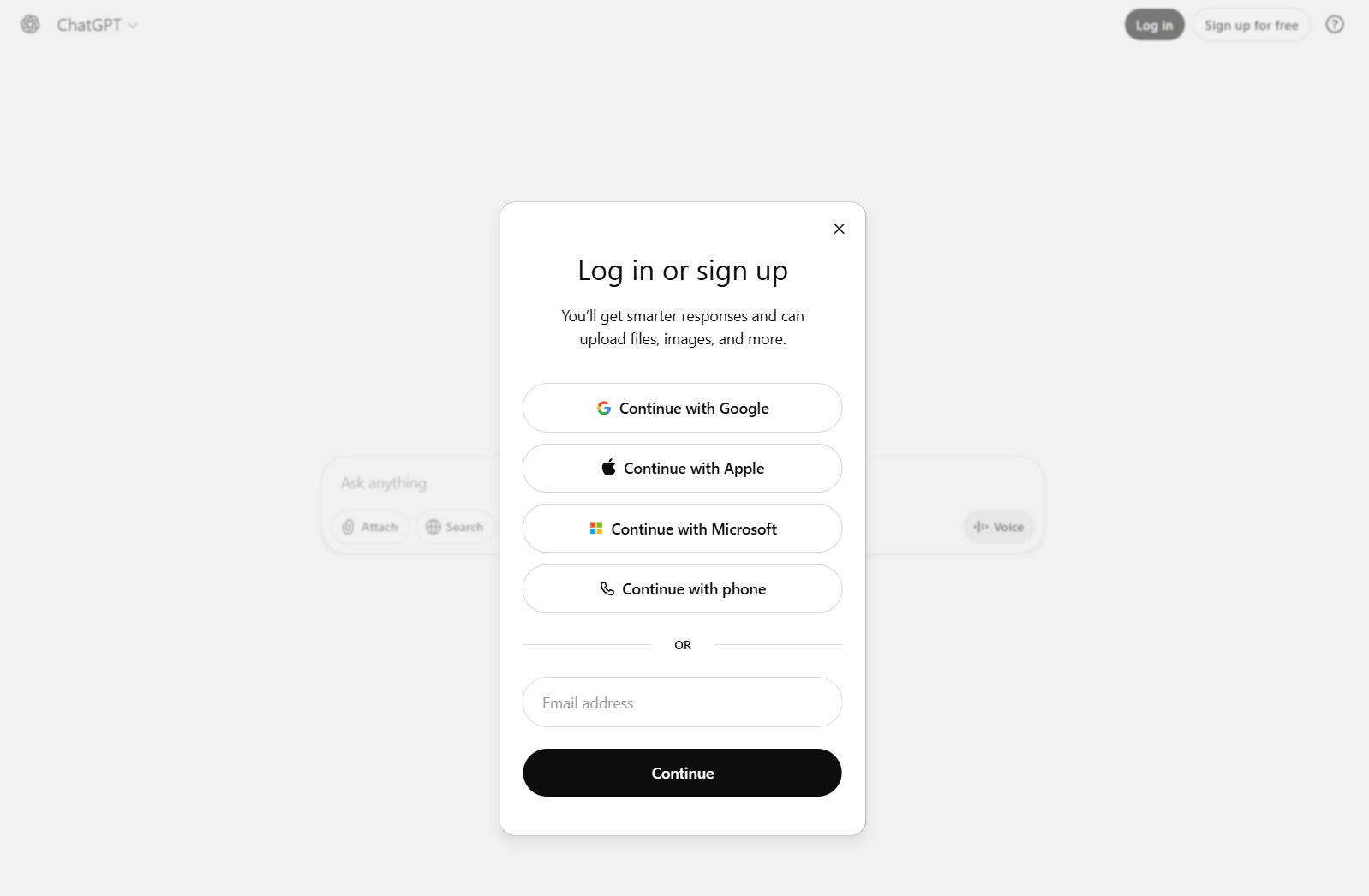 Screenshot: The ChatGPT sign-up page. You can sign up with Google, Microsoft, or Apple. The free plan gives you access to GPT-4o mini and limited GPT-4o usage.
Your First Business Task with ChatGPT
Let's put it to work immediately. Type this into ChatGPT:
Your prompt: "I'm starting a one-person your business type business. Help me create a simple one-page business plan. Include: my target customer, the top 3 services or products I should offer first, a pricing strategy, and 5 ways to get my first 10 customers. Keep it practical and specific."
Replace [your business type] with whatever you're building: freelance design, tutoring, consulting, an online shop, whatever.
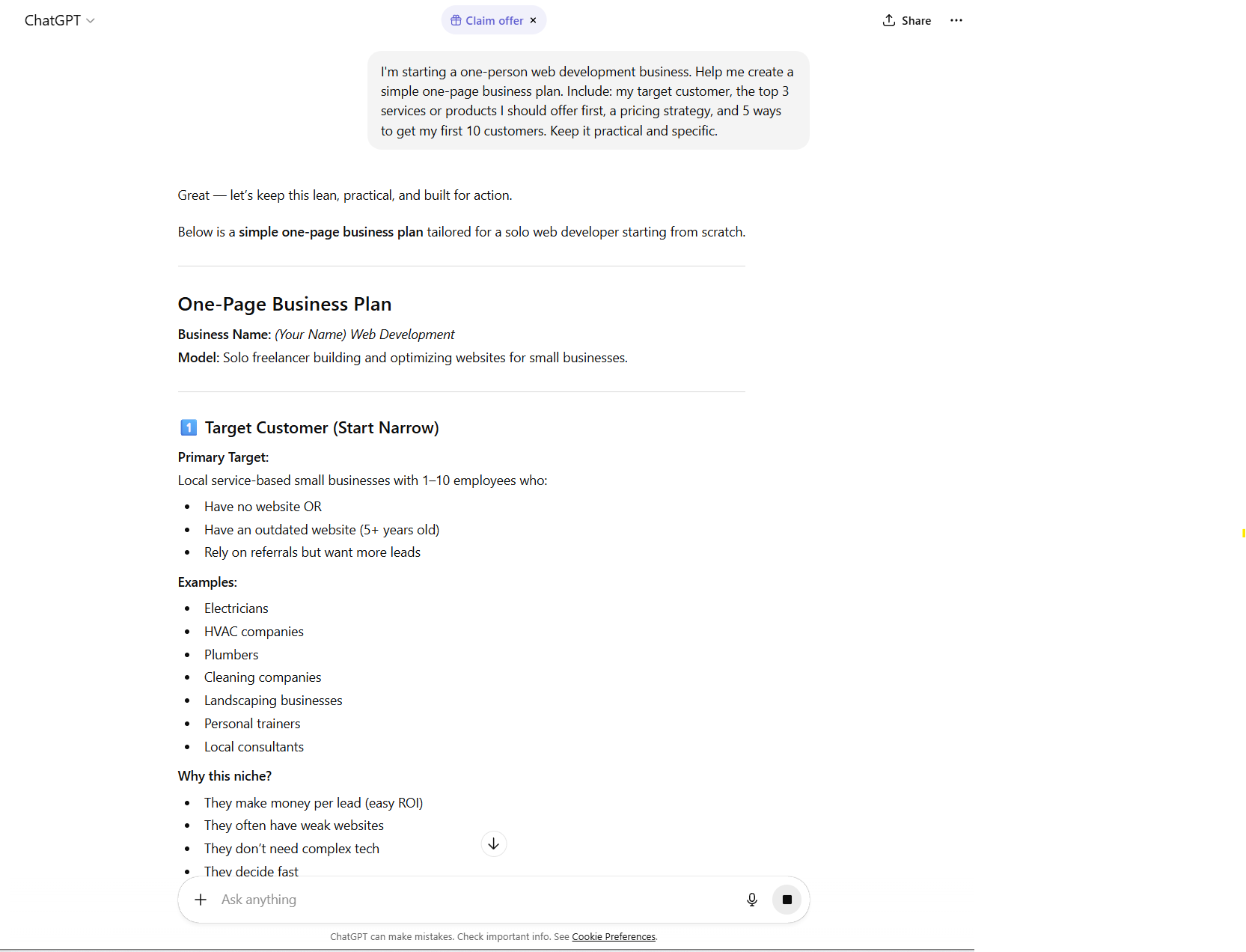 Screenshot: ChatGPT generating a practical one-page business plan. Notice how specific and actionable the output is. This isn't generic advice, it's tailored to your business type.
What you just did in 2 minutes would have taken a consultant $500 and a week to deliver. Save this output. You'll reference it as we set up the rest of your tools.
Other Things You'll Use ChatGPT For Daily
- Writing client emails: "Rewrite this email to sound more professional but friendly"
- Creating social media captions: "Write 5 Instagram captions for my business type that would engage local customers"
- Handling tough situations: "A customer is asking for a refund and I want to keep them happy. Here's the situation..."
- Market research: "What are the top 5 pain points for target customer in 2026?"
- Writing proposals and pitches: "Write a proposal for specific project that I can send to a potential client"
Pro Tips for ChatGPT
| Tip | Why It Matters |
|---|---|
| Be specific | "Write a social media post" gets generic results. "Write a Threads post about why small bakeries should use online ordering, in a casual and slightly sarcastic tone" gets gold. |
| Give it context | Start conversations with "I run a business. My customers are description. My tone is description." |
| Use follow-ups | Don't accept the first answer. Say "make it shorter," "add more personality," or "give me 3 more options." |
| Save your best prompts | When you find a prompt that works well, copy it somewhere. You'll reuse it constantly. |
Tool 2: Canva AI, Your AI Designer (Graphics, Logos, Social Media)
Every business needs visuals. Social media posts, logos, presentations, flyers, business cards... the list never ends. Canva AI turns you into a designer even if you can't draw a straight line.
Set It Up
- Go to canva.com (opens in a new tab)
- Click "Sign Up" (free account)
- Sign up with Google, Facebook, or email
- When asked what you'll use Canva for, select "Small Business"
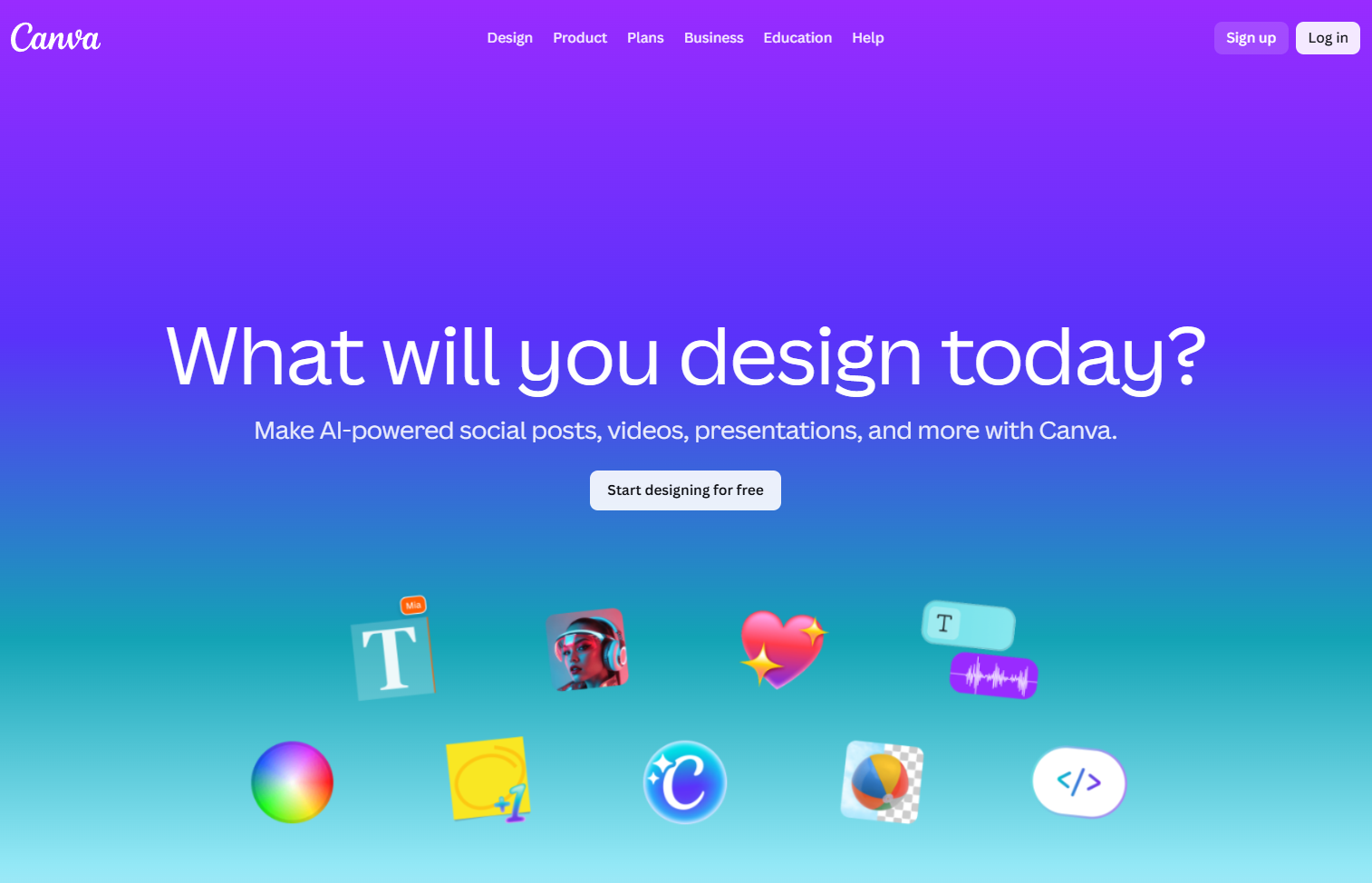 Screenshot: The Canva homepage. Click "Sign up" in the top right. The free plan includes thousands of templates and access to AI features.
Create Your First Business Graphic
Once you're in, let's create a social media post:
- Click "Create a Design" in the top right
- Select "Instagram Post" (or any social media size)
- Instead of picking a template, click the "Magic Design" button (the sparkle icon)
- Type a description: "A clean, professional social media post for a your business type business announcing a grand opening sale"
- Canva AI will generate several design options for you
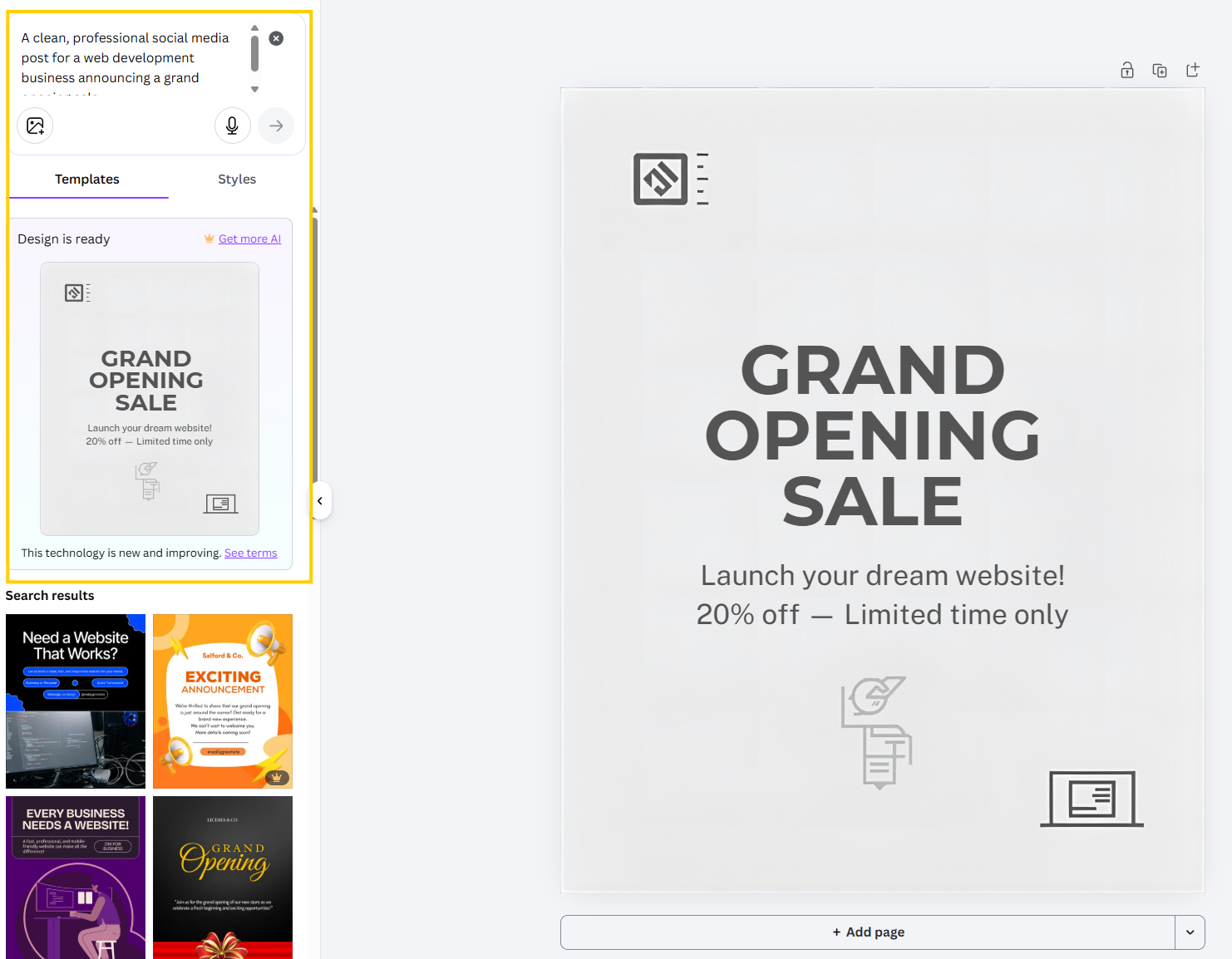 Screenshot: Canva's Magic Design feature. Describe what you want in plain English and it generates multiple professional design options. Pick one and customize from there.
- Pick the one you like and customize it: change colors, text, images
- Click "Share" → "Download" to save it
What Canva AI Can Do for Your Business
- Social media graphics: Posts, stories, reels covers for every platform
- Logo design: Use "Magic Design" with "Create a logo for business name, a business type. Style: modern and clean"
- Business cards: Templates + AI customization
- Presentations: Pitch decks for clients or investors
- Marketing materials: Flyers, brochures, email banners
- Product mockups: Show your product on t-shirts, mugs, screens
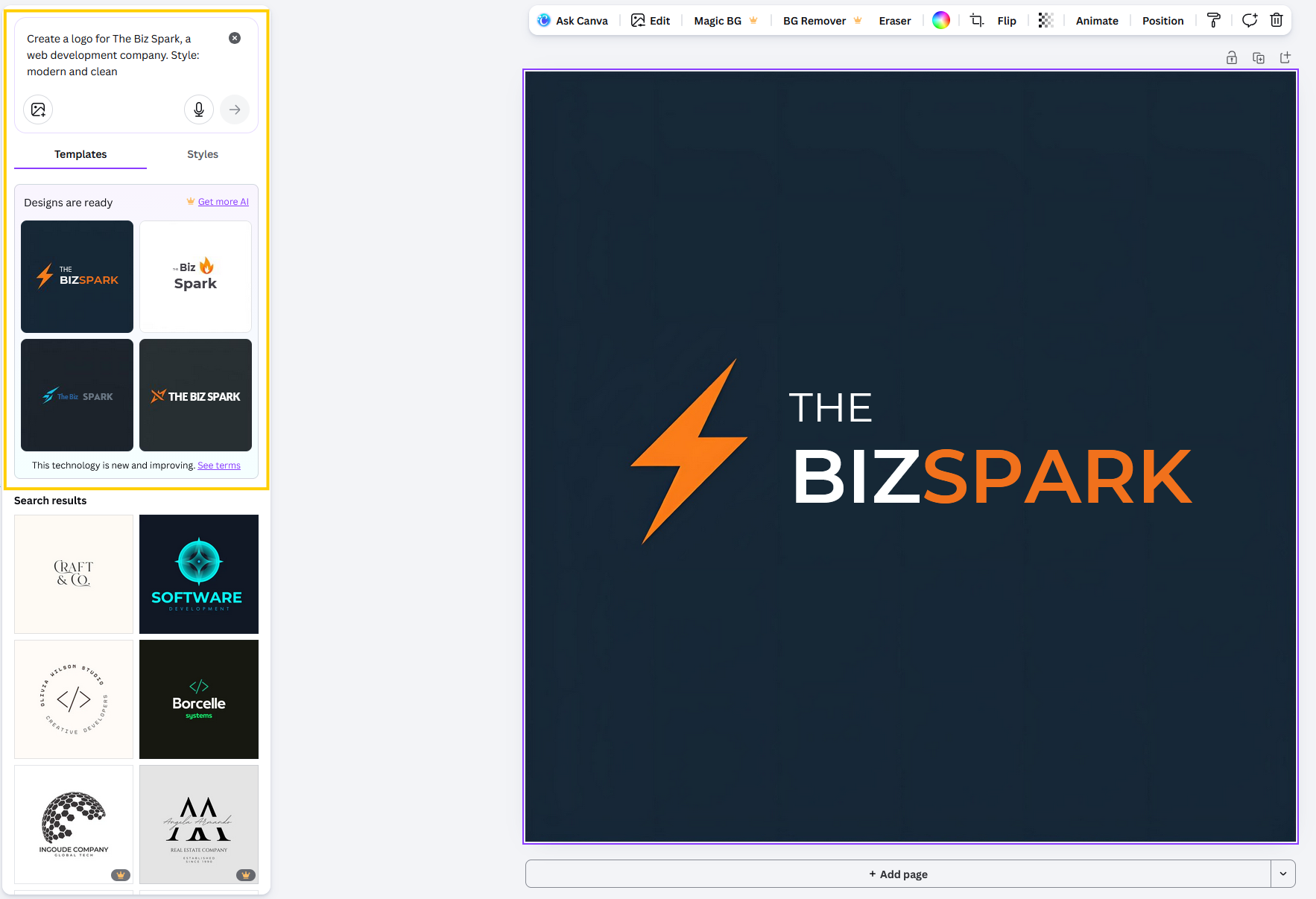 Screenshot: Canva's AI logo generator creates multiple logo concepts from a text description. You can customize colors, fonts, and icons after generation.
Pro Tip: Brand Kit
Once you settle on your colors and fonts, set up a Brand Kit in Canva (available on free plan):
- Go to Brand Hub in the left sidebar
- Add your brand colors (pick 2-3)
- Add your fonts
- Upload your logo
Now every new design will automatically suggest your brand colors and fonts. Consistency without effort.
Tool 3: Notion AI, Your AI Project Manager (Organization, Planning, Notes)
Running a business solo means juggling a dozen things at once. Notion is your second brain. It keeps everything organized so nothing falls through the cracks. And with Notion AI built in, it can write, summarize, and brainstorm for you too.
Set It Up
- Go to notion.so (opens in a new tab)
- Click "Get Notion free"
- Sign up with Google or email
- When asked about your use case, select "Personal" or "Company" (1 person)
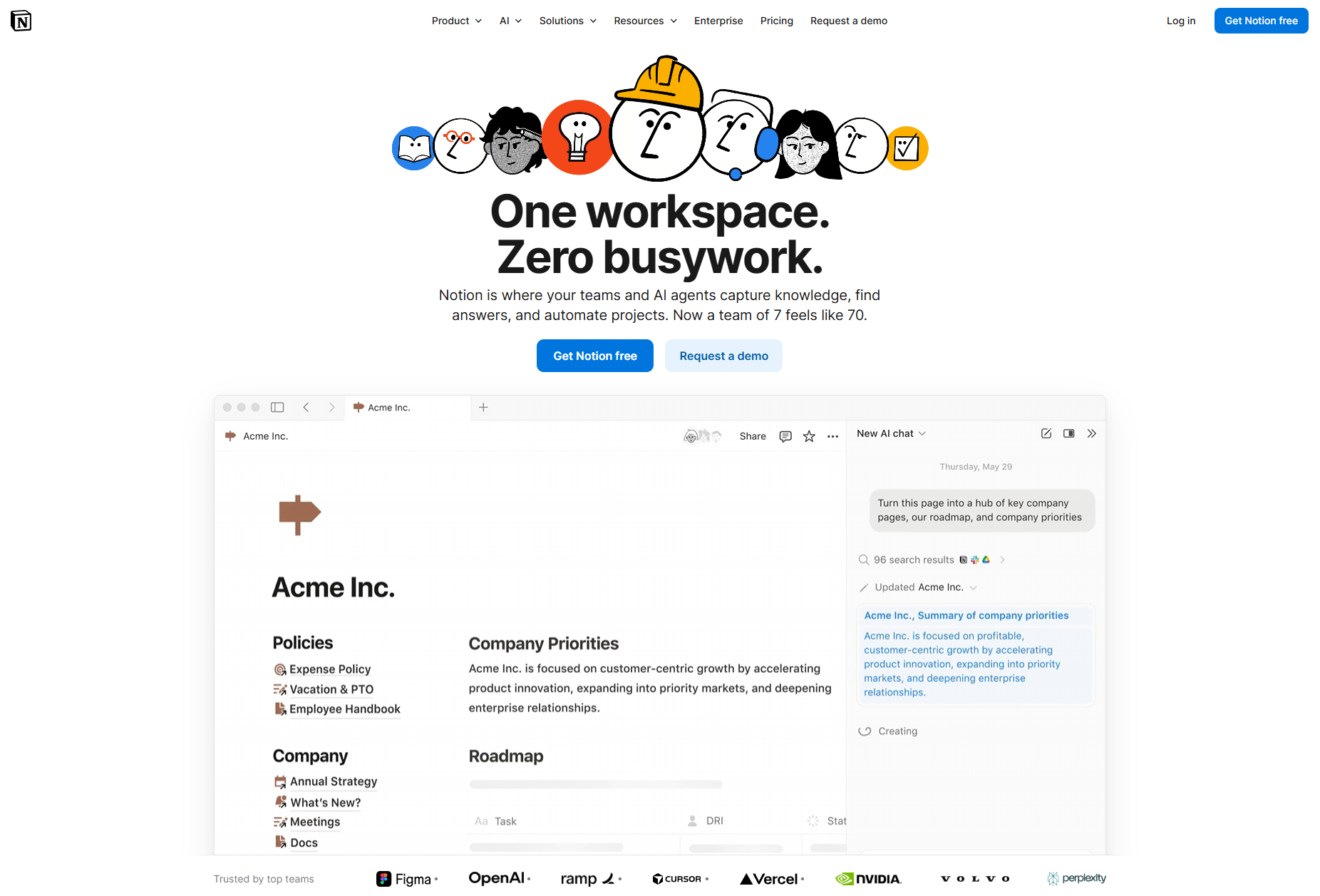 Screenshot: Notion's sign-up page. The free plan includes unlimited pages, Notion AI with limited queries, and it works on desktop, mobile, and web.
Set Up Your Business Dashboard
Here's where it gets powerful. Ask Notion AI to create your workspace:
- Create a new page and title it "Business HQ"
- Type
/aiand select "Ask AI" - Enter this prompt: "Create a business dashboard for a solo your business type business with sections for: weekly tasks, client tracker, content calendar, revenue tracker, and ideas backlog"
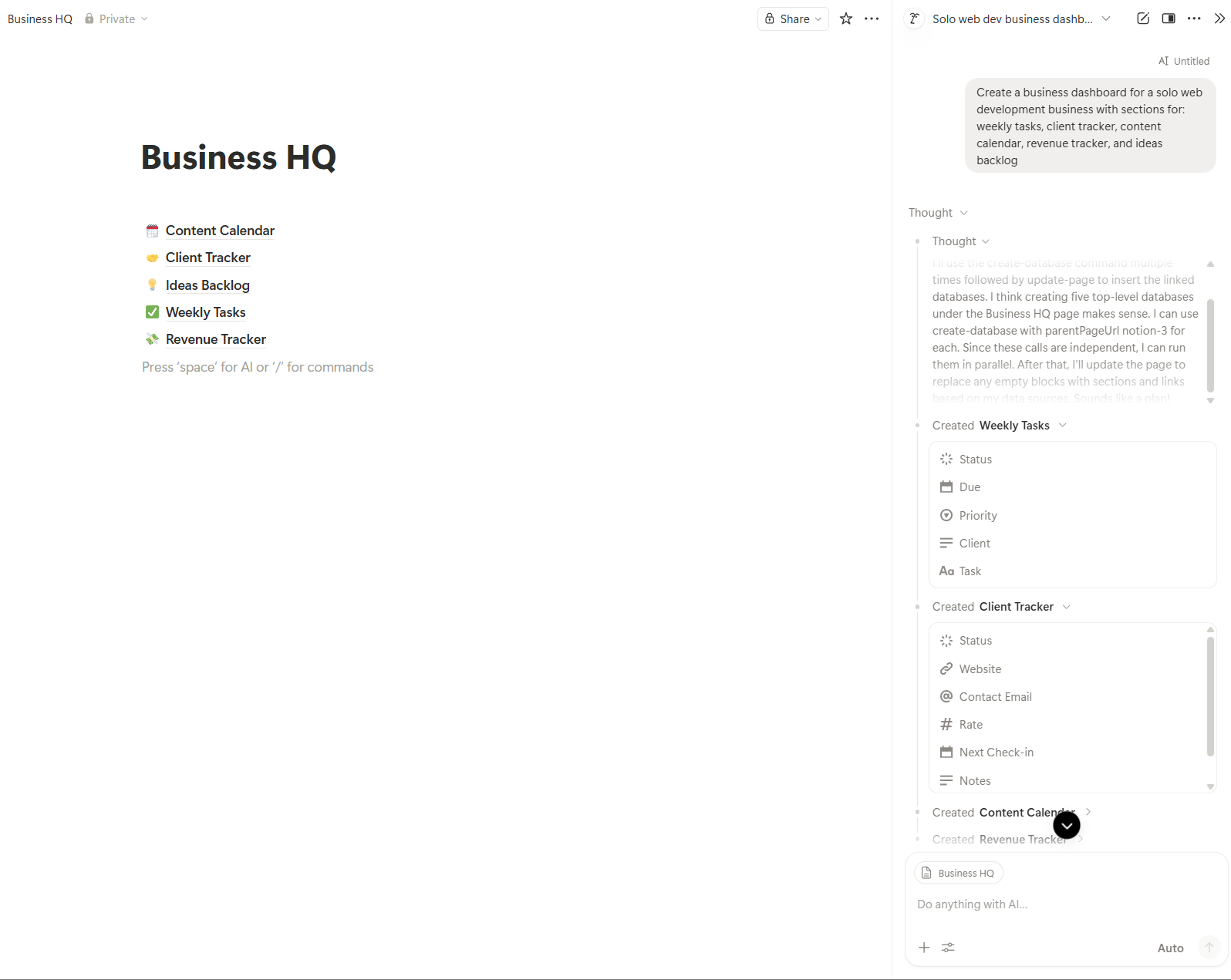 Screenshot: Notion AI building out a complete business dashboard from a single prompt. It creates databases, tables, and organized sections automatically.
Notion AI will generate an entire structured workspace. You can then customize each section to fit your workflow.
Your Weekly Rhythm in Notion
Here's a simple system that works:
Monday: Plan the week. Open your Business HQ, review last week's tasks, set priorities for this week.
Daily: Check your task list, update client status, log any new ideas in the backlog.
Friday: Weekly review. What got done? What didn't? What needs to change?
What Notion AI Does That Regular Notion Doesn't
- Summarize meeting notes: Paste in messy notes, ask AI to clean them up
- Draft emails and messages: "Write a follow-up email to a client who hasn't responded in 5 days"
- Generate action items: Paste a client brief and ask "What are the action items from this?"
- Brainstorm: "Give me 10 content ideas for a business type targeting audience"
Tool 4: Buffer, Your AI Social Media Manager (Scheduling, Publishing)
Social media is non-negotiable for most businesses, but posting manually every day is a time killer. Buffer lets you schedule posts across multiple platforms in one place, and its AI assistant helps you write them.
Set It Up
- Go to buffer.com (opens in a new tab)
- Click "Get Started Now"
- Create an account (free tier includes 3 social channels)
- Connect your social media accounts (Instagram, X/Twitter, LinkedIn, Facebook, etc.)
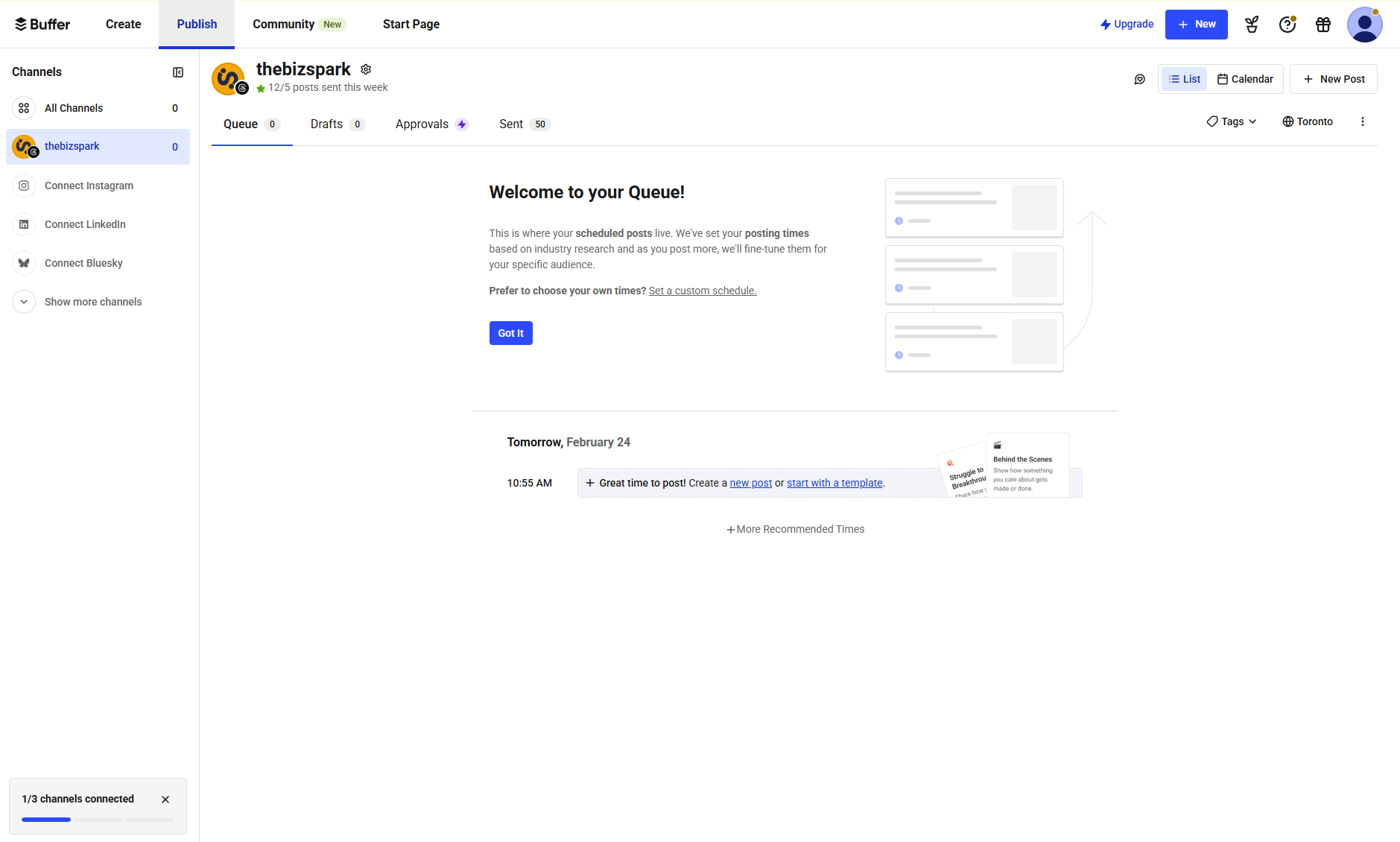 Screenshot: Buffer's dashboard after connecting social media accounts. The free plan supports 3 channels with 10 scheduled posts per channel.
Schedule Your First Week of Content
Here's a workflow that takes about 30 minutes and fills your entire week:
Step 1: Go to ChatGPT and enter:
"Create 7 social media posts for my business type business. One for each day of the week. Mix of educational tips, behind-the-scenes, and one promotional post. Keep them casual and engaging. Include hashtag suggestions."
Step 2: Copy each post into Buffer:
- Click "Create" → "New Post"
- Select which channels to post to
- Paste the content (edit it to add your personal touch)
- Use Buffer's AI Assistant to refine the caption if needed
- Choose a date and time, or let Buffer's "Optimal Timing" feature pick the best time
- Click "Schedule"
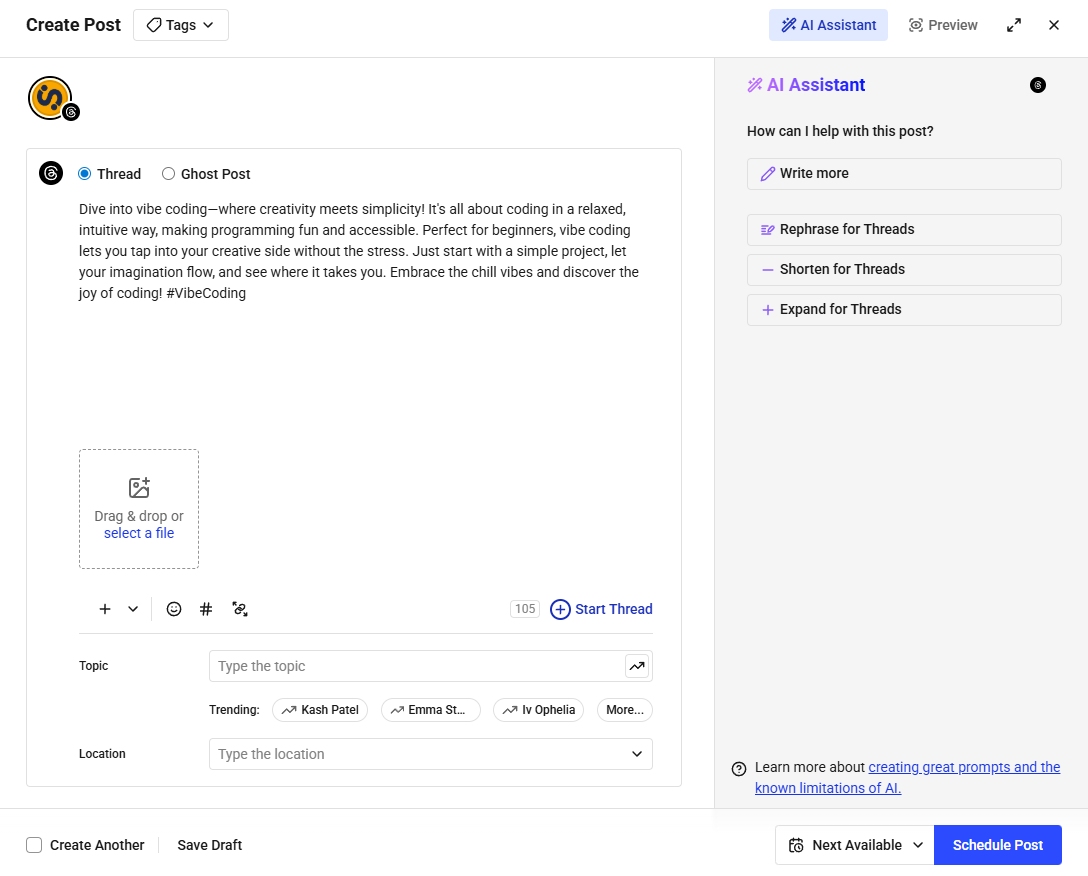 Screenshot: Scheduling a post in Buffer. The AI Assistant (bottom left) can rewrite, shorten, or generate hashtags for your post. The calendar view shows your entire week at a glance.
Step 3: Repeat for all 7 posts. Done. Your social media runs on autopilot for the week.
The Content Mix That Works
Based on what we've seen work for solo businesses:
| Day | Content Type | Example |
|---|---|---|
| Monday | Educational tip | "3 things every customer type should know about..." |
| Tuesday | Behind the scenes | Photo/video of your workspace or process |
| Wednesday | Industry insight | Share an article or trend with your take |
| Thursday | Client win or testimonial | "Just helped a client achieve..." |
| Friday | Casual/personality | Something fun, relatable, or personal |
| Saturday | Value post | Free tip, checklist, or resource |
| Sunday | Promotional | Feature a service or product with a CTA |
How ready is your business for AI? Take our free 2-minute assessment and get a personalized score with actionable recommendations.
Take the AssessmentTool 5: Tidio, Your AI Customer Service Rep (Live Chat, Chatbot)
When someone visits your website at 10 PM with a question, you're probably not there to answer it. Tidio is. It's an AI-powered chatbot that handles customer questions 24/7, captures leads, and only pings you when a human is actually needed.
Set It Up
- Go to tidio.com (opens in a new tab)
- Click "Get Started Free"
- Create an account with email or Google
- Enter your website URL when prompted
- Choose your chat widget color (match it to your brand)
- Install on your website. Tidio gives you a simple code snippet to paste, or plugins for WordPress/Shopify/Wix
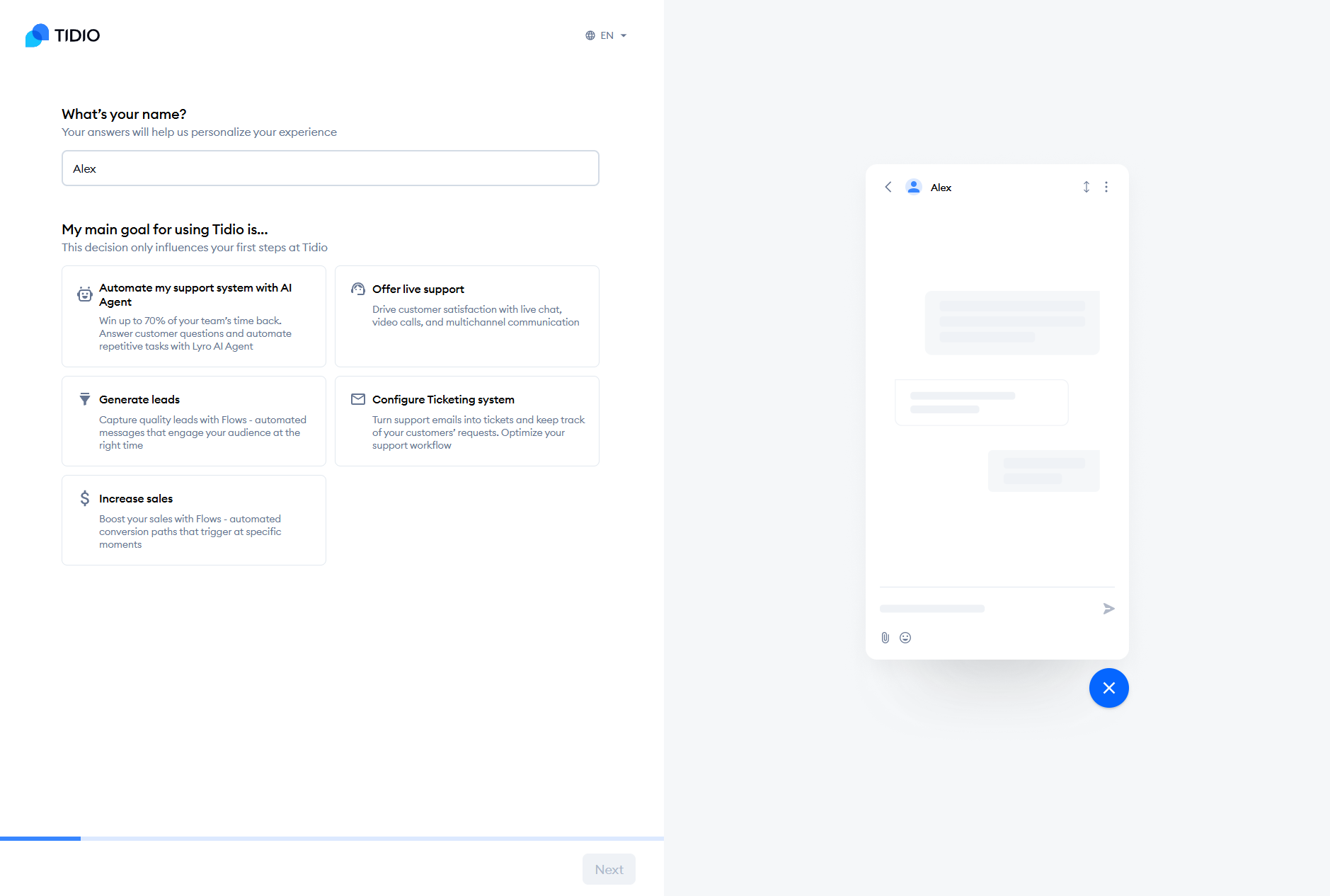 Screenshot: Tidio's setup wizard. Pick your widget color, set your business hours, and customize the welcome message. The free plan includes 50 AI-handled conversations per month.
Train Your Chatbot in 10 Minutes
This is the part that makes Tidio powerful for solo businesses:
- Go to "Lyro AI" in the left sidebar (that's Tidio's AI chatbot)
- Click "Knowledge" → "Add content"
- You have two options:
- Import your website: Tidio will crawl your site and learn your FAQs, services, and pricing automatically
- Add manually: Type out answers to common questions
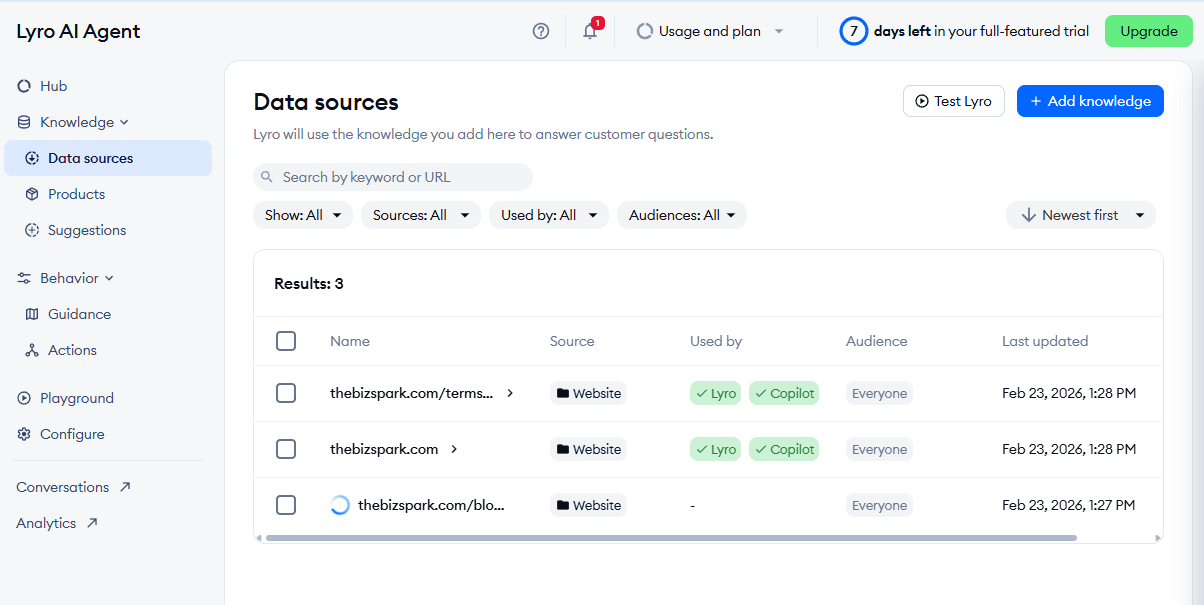 Screenshot: Tidio's Lyro AI knowledge base. Import your website content or manually add Q&A pairs. The more information you give it, the better it handles customer questions.
- Add answers to your most common questions:
- "What are your prices?"
- "What services do you offer?"
- "How do I book an appointment?"
- "What's your turnaround time?"
- "Do you offer refunds?"
- Toggle "Lyro AI" on, and it will start answering customer questions automatically
What Your Chatbot Handles vs. What You Handle
| Chatbot Handles (Automatic) | You Handle (Notified) |
|---|---|
| FAQs about pricing, services, hours | Custom project requests |
| Booking links and directions | Complaints or refund requests |
| Basic product questions | Complex or sensitive issues |
| Lead capture (name, email) | High-value sales conversations |
The chatbot handles the repetitive stuff. You handle the stuff that actually needs a human brain.
Tool 6: Wave, Your AI Bookkeeper (Invoicing, Accounting, Finances)
Money management is where most solo business owners either spend too much time or avoid it entirely. Wave is a completely free accounting and invoicing tool. No hidden fees, no "free trial" that expires. It's actually free.
Set It Up
- Go to waveapps.com (opens in a new tab)
- Click "Sign Up" (it's free, really)
- Create your account with email
- Enter your business name and type
- Connect your bank account (optional but recommended, as it auto-imports transactions)
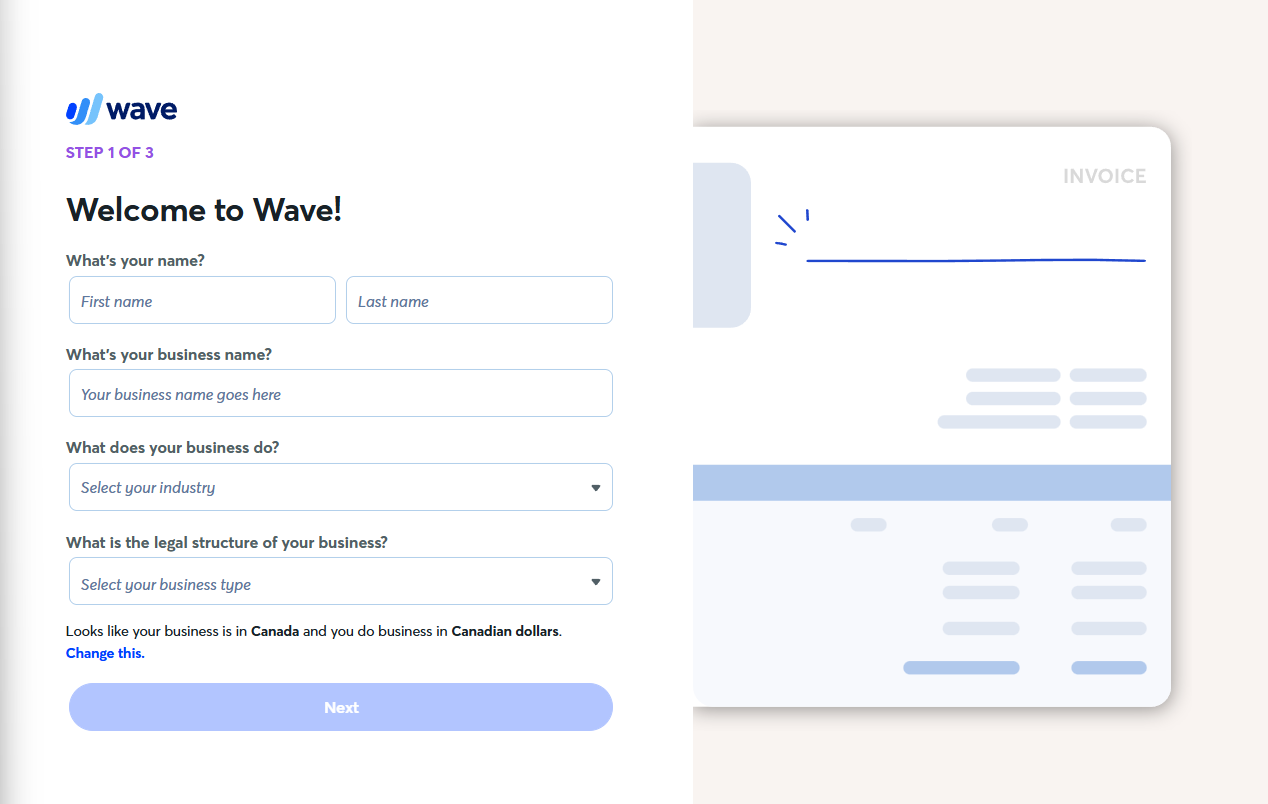 Screenshot: Wave's signup and initial business setup. Enter your business details and optionally connect your bank for automatic transaction imports.
Send Your First Invoice in 2 Minutes
- Click "Invoices" → "Create Invoice"
- Add your client's information
- Add line items (services, products, hours)
- Customize with your logo and colors
- Click "Send". Wave emails the invoice directly to your client with a "Pay Now" button
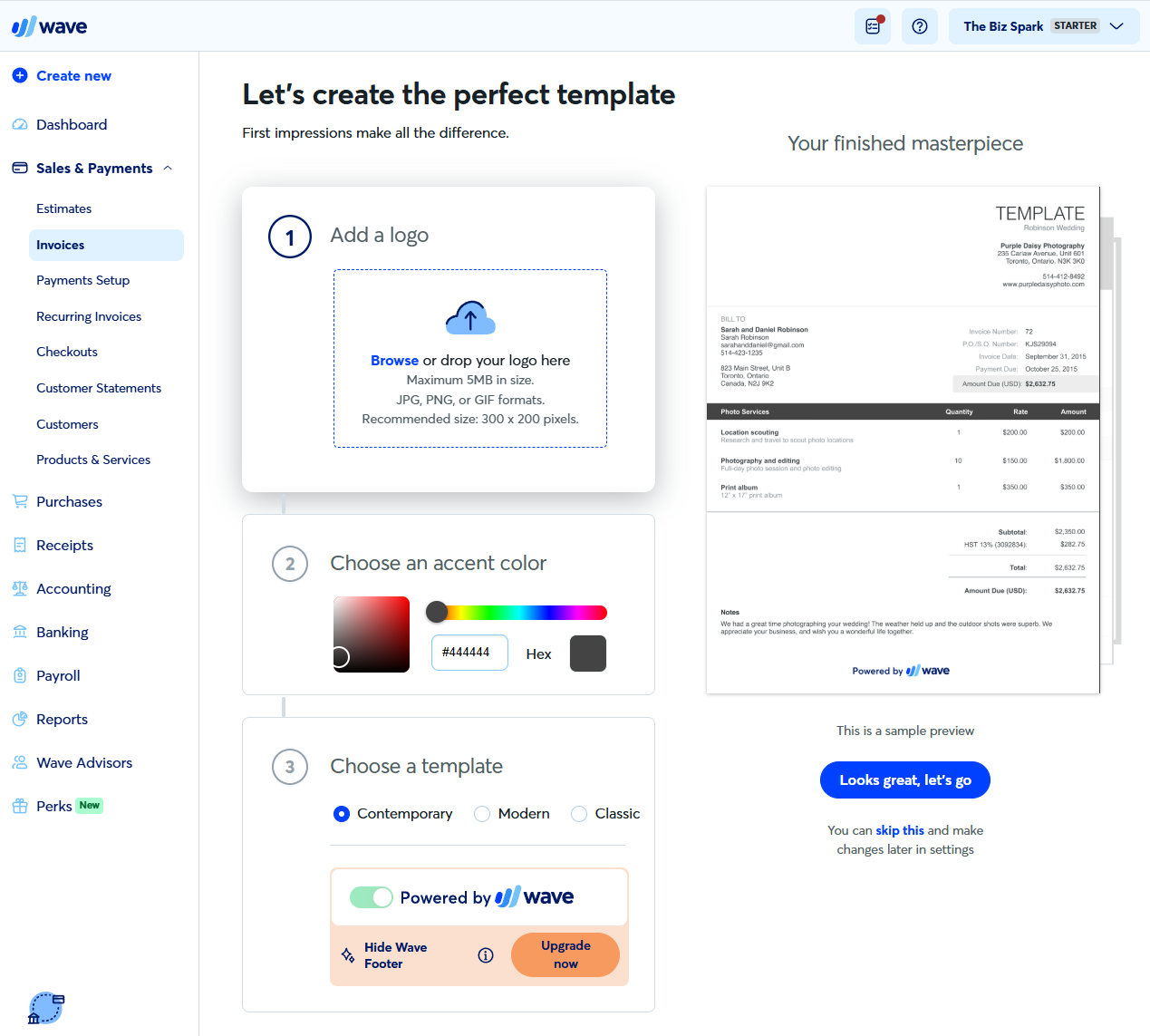 Screenshot: Creating an invoice in Wave. Add line items, set your terms, and send. Clients can pay online directly from the invoice.
What Wave Does for You (For Free)
- Invoicing: Create, send, and track professional invoices
- Expense tracking: Categorize business expenses automatically
- Financial reports: Profit & loss, balance sheet, sales tax reports
- Receipt scanning: Snap a photo of a receipt and Wave extracts the data
- Bank connections: Auto-import and categorize transactions
- Multi-currency: Invoice clients in different currencies
The 15-Minute Weekly Finance Routine
Every Friday, spend 15 minutes in Wave:
- Review transactions (2 min): Check that auto-imported transactions are categorized correctly
- Send outstanding invoices (5 min): Bill for any completed work this week
- Follow up on unpaid invoices (3 min): Wave shows you who's overdue
- Snap receipts (5 min): Photograph any paper receipts from the week
That's it. Your "bookkeeping" is done.
Tool 7: Zapier, Your AI Operations Coordinator (Automation, Connections)
This is the tool that ties everything together. Zapier connects your other tools so they talk to each other automatically. Think of it as the glue between all your AI assistants.
Set It Up
- Go to zapier.com (opens in a new tab)
- Click "Sign Up" (free tier includes 100 tasks per month)
- Create an account with Google or email
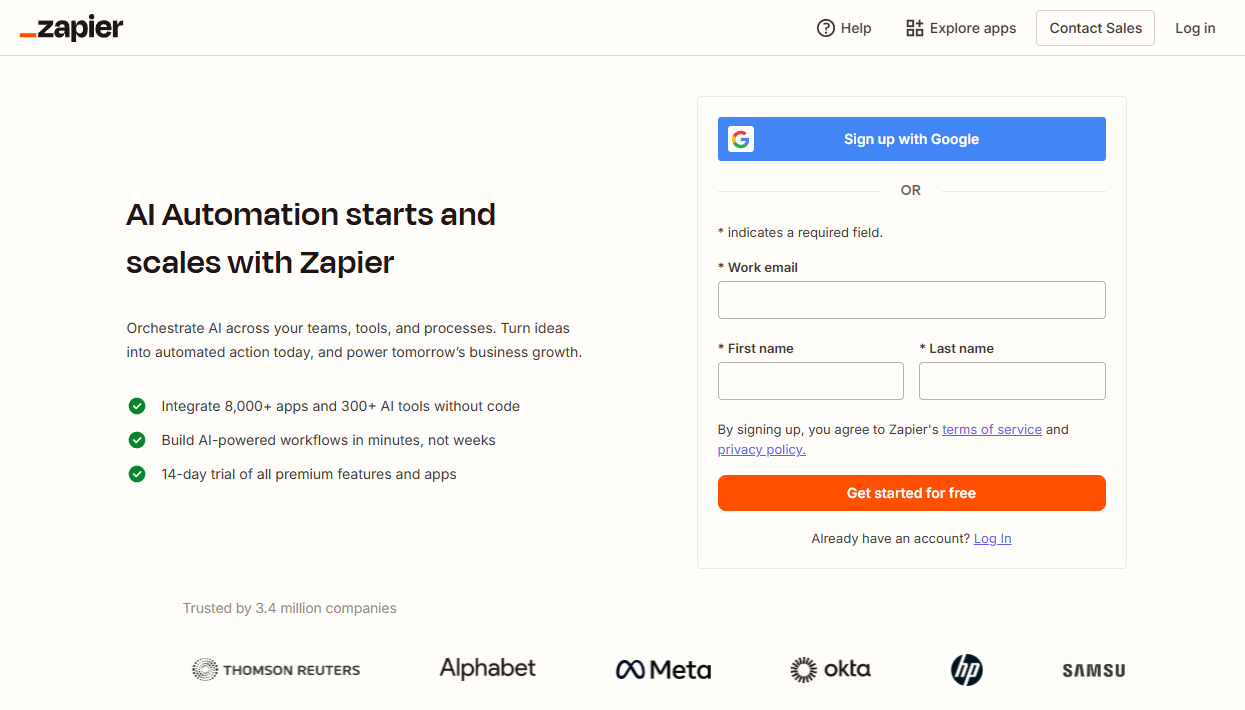 Screenshot: Zapier's sign-up page. The free plan includes 100 tasks per month and 5 active automations, more than enough to get started.
Your First 3 Automations
Zapier works with "Zaps", simple if-this-then-that automations. Here are the three every solo business should set up first:
Automation 1: New Lead → Notification + Notion
What it does: When someone fills out your contact form (or Tidio captures a lead), automatically add them to your Notion client tracker and send you a notification.
- Click "Create" → "New Zap"
- Trigger: Choose your form tool (Tidio, Typeform, Google Forms, etc.) → "New submission"
- Action 1: Notion → "Create database item" → Add to your Client Tracker
- Action 2: Email or Slack → Send you a notification
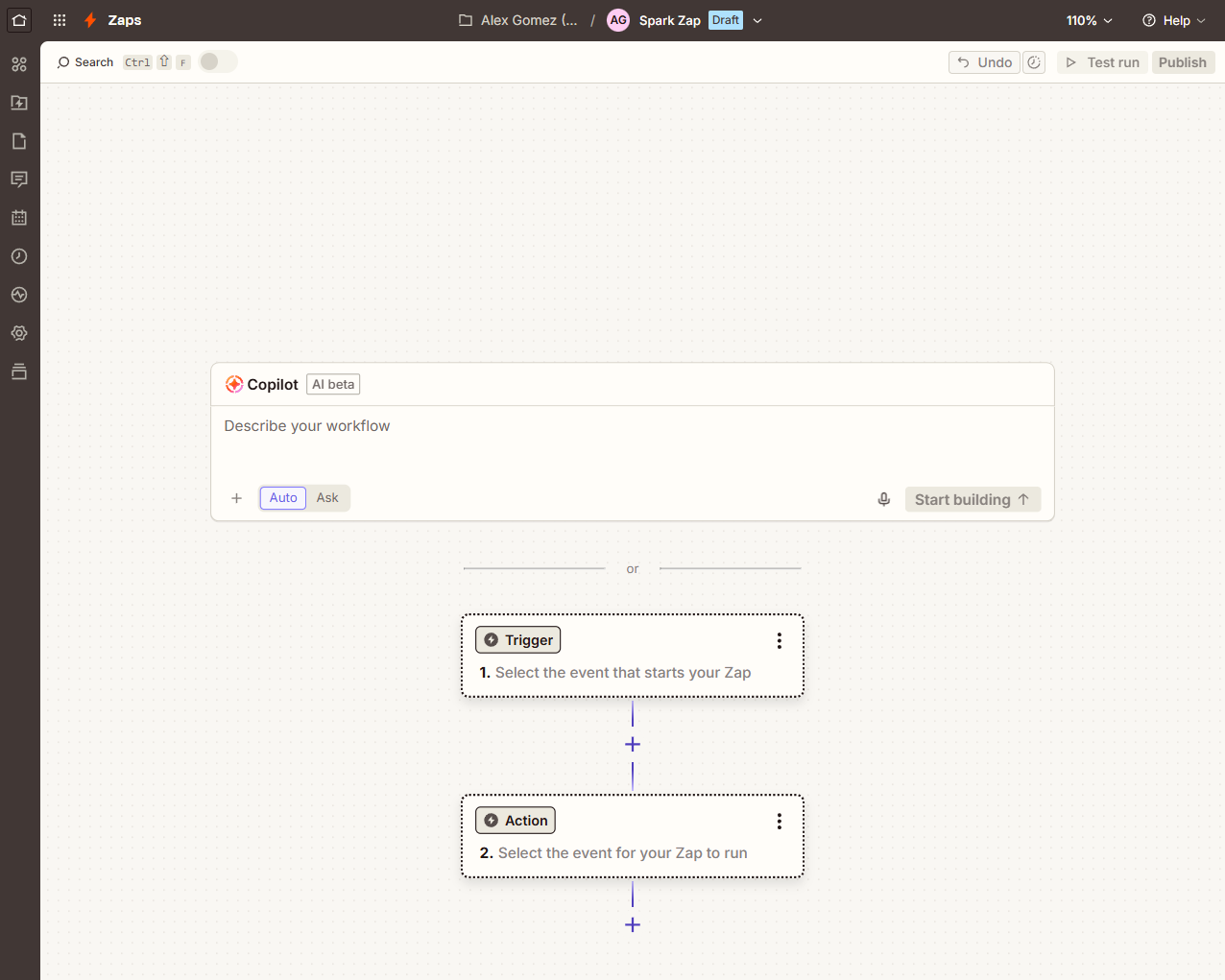 Screenshot: Setting up a Zap that connects Tidio to Notion. When a new lead comes in through your chatbot, it automatically appears in your client tracker with all their details.
Automation 2: New Invoice Paid → Thank You Email
What it does: When a client pays an invoice in Wave, automatically send them a thank-you email.
- Trigger: Wave → "Invoice paid"
- Action: Gmail → Send email → Use a template: "Thanks for your payment! Your receipt is attached. Looking forward to working together."
Automation 3: Weekly Report → Your Inbox
What it does: Every Monday morning, Zapier compiles a summary of last week's activity and emails it to you.
- Trigger: Schedule → Every Monday at 8 AM
- Action: Collect data from Wave (revenue), Buffer (social stats), Tidio (chat stats)
- Action: Email → Send yourself a formatted weekly summary
How Your Tools Now Work Together
Here's the beautiful part. With Zapier connecting everything, your business runs like this:
Customer visits website
    → Tidio chatbot answers their questions
    → Lead captured → Zapier adds to Notion tracker
    → You get notified

You do the work
    → Send invoice via Wave
    → Client pays → Zapier sends thank-you email
    → Transaction auto-categorized in Wave

Content runs on autopilot
    → ChatGPT writes drafts → You edit in Buffer → Posts go out automatically
    → Canva AI creates matching graphics

Monday morning
    → Zapier sends you a weekly summary
    → Notion shows your priorities
    → You know exactly what to focus on
That's a full team's worth of work, handled by 7 free tools and one human: you.
Your Complete Daily Schedule (As a Solo AI Business Owner)
Here's what a typical day looks like once everything is set up:
Morning (30 minutes)
| Time | Task | Tool |
|---|---|---|
| 8:00 AM | Check weekly summary email | Zapier + Email |
| 8:10 AM | Review Notion dashboard, set today's priorities | Notion |
| 8:20 AM | Review and approve chatbot conversations from overnight | Tidio |
| 8:30 AM | Check and respond to any urgent client messages | ChatGPT (for drafting responses) |
Work Block (Focus on revenue-generating work)
This is where you do your actual work: the service or product that your business sells.
Afternoon (20 minutes)
| Time | Task | Tool |
|---|---|---|
| 2:00 PM | Batch-create social content for the week (once per week) | ChatGPT + Canva + Buffer |
| 2:15 PM | Review any new leads in Notion | Notion |
| 2:20 PM | Send invoices for completed work | Wave |
Evening (10 minutes)
| Time | Task | Tool |
|---|---|---|
| 5:00 PM | Quick scan of social media engagement | Buffer |
| 5:05 PM | Log any new ideas or tasks | Notion |
| 5:10 PM | Done. | You |
Total admin time: ~1 hour. The rest of your day is spent on the work that actually makes money.
Real Talk: What AI Can and Can't Do for Your Solo Business
Let's be honest about the limitations. AI tools are powerful, but they're not magic. Here's the real picture:
What AI Does Well
- Drafts and starting points: AI gives you a 70% complete version of almost anything. You add the final 30% (your voice, your judgment, your expertise).
- Repetitive tasks: Scheduling, categorizing, responding to FAQs, formatting. AI crushes these.
- Speed: What used to take 3 hours now takes 20 minutes.
- Consistency: AI doesn't forget to post on Wednesday. It doesn't skip bookkeeping because it's tired.
What Still Needs You
- Relationships: AI can draft the email, but clients hire you because of you. Human connection still matters.
- Quality control: Always review AI-generated content before it goes out. Always.
- Strategy: AI can brainstorm options, but you make the decisions about where your business is going.
- The actual work: If you're a consultant, you still need to consult. If you're a designer, you still need your creative eye. AI handles the business operations around your core skill.
The 70/30 Rule
Think of it this way: AI does 70% of the busywork so you can focus 100% on the 30% that actually matters. That 30% is your expertise, your relationships, and your judgment. Those are the things that make your business yours.
Common Mistakes to Avoid
"I automated everything and stopped checking"
Never set it and forget it completely. Check your chatbot conversations weekly. Is it giving good answers? Review your social posts before they go out. Glance at your finances in Wave. Automation is a copilot, not a replacement.
"My AI content sounds like AI"
If your content reads like a textbook, you're not editing enough. AI gives you the raw material. You add the personality. Read every post out loud before scheduling. If it doesn't sound like you, rewrite the parts that feel off.
"I signed up for everything at once and got overwhelmed"
Don't do this. Set up one tool per day over a week. Get comfortable with each one before adding the next. The order in this guide is intentional: start with ChatGPT (your brain), then Canva (your designer), and work your way through.
"I'm spending more on AI tools than I'm making"
That's why every tool in this guide has a free tier. Start free. Only upgrade when a tool is clearly saving you time or making you money. For most solo businesses, the free tiers are plenty for the first 6 months.
Upgrading When You're Ready
Once your business grows and the free tiers start feeling tight, here's what's worth paying for first:
| Priority | Tool | Paid Plan | Why Upgrade |
|---|---|---|---|
| 1st | ChatGPT Plus | $20/month | More GPT-4o access, image generation, custom GPTs for your business |
| 2nd | Canva Pro | $13/month | Brand Kit, background remover, premium templates, unlimited storage |
| 3rd | Buffer Essentials | $6/month per channel | Unlimited posts, analytics, engagement tools |
| 4th | Zapier Starter | $20/month | 750 tasks, multi-step automations |
| 5th | Tidio+ | $29/month | More AI conversations, advanced analytics |
| 6th | Notion Plus | $10/month | Unlimited AI, file uploads, API access |
Total "full stack" cost: ~$100-120/month. That's less than a single freelancer's hourly rate, running 24/7.
Your 7-Day Setup Challenge
Here's your action plan. One tool per day, 30 minutes each:
| Day | Tool | What to Do |
|---|---|---|
| Day 1 | ChatGPT | Sign up, create your one-page business plan |
| Day 2 | Canva AI | Sign up, create your logo and first social media graphic |
| Day 3 | Notion AI | Sign up, build your Business HQ dashboard |
| Day 4 | Buffer | Sign up, connect channels, schedule your first week of posts |
| Day 5 | Tidio | Sign up, install on your website, train your chatbot |
| Day 6 | Wave | Sign up, send your first invoice |
| Day 7 | Zapier | Sign up, create your first 3 automations |
By next week, you'll have a complete AI-powered business infrastructure. For free. Built by you.
Bonus: The One Tool You Should Add Next
Once you're comfortable with the 7 tools above, the single best addition to your stack is Kit (formerly ConvertKit) for email marketing. Their free plan supports up to 10,000 subscribers with unlimited emails, landing pages, and automation. That's the most generous free tier in the email marketing space by far.
Email is still the highest-ROI marketing channel for solo businesses. Your social media posts reach maybe 5-10% of your followers. Your emails reach 90%+ of your list. Set up a simple weekly newsletter in Kit, use ChatGPT to draft it, and you'll have a direct line to your customers that no algorithm can take away.
The Bigger Picture
A complete solopreneur AI stack costs between $0 and $3,000 to $12,000 per year. That's a 95-98% cost reduction compared to traditional staffing. Nearly half of all solopreneurs started their businesses with under $5,000, and 77% report profitability in their first year.
Two years ago, starting a business meant either hiring a team or working 80-hour weeks doing everything yourself. The barrier wasn't the idea. It was the operations.
AI tools have demolished that barrier. The playing field hasn't just been leveled, it's been flipped. A solo founder with the right AI toolkit can now move faster, respond quicker, and look more professional than a 10-person company that's still doing everything manually.
You don't need funding. You don't need a team. You don't need to be technical.
You need a laptop, an internet connection, and the willingness to spend 7 days setting up the tools that will run your business alongside you.
The age of the AI solopreneur isn't coming. It's here. And now you have the toolkit to be part of it.
Want help setting up your AI business toolkit or building a professional website for your one-person business? Reach out to us at The Biz Spark (opens in a new tab). We specialize in helping solo founders and small businesses work smarter with AI.
The Biz Spark Guide
Want the complete framework for working with AI effectively? "How to Actually Get Work Done With AI" covers the supervision mindset, the TCREI framework, real workflows, and a case study where we took AI approval rates from 20% to 80%.
Get the Guide - $20